
M
MacRumors
Guest
Author: Tim Hardwick
In macOS Monterey 12.1, which is available in a beta capacity right now, Apple introduced its new SharePlay feature to FaceTime. Previously only available on iPhone and iPad, SharePlay allows you to share your Mac's screen with other people on a FaceTime call, which opens up new possibilities for sharing experiences with friends, family, and co-workers.

Thanks to SharePlay, you and others on the same FaceTime call as you can listen to music or watch TV movies and shows together. You can even share your screen or a specific app window on your Mac's desktop with the people you're chatting with to discuss a piece of work or provide remote tech support, or simply to enjoy looking at a photo album together.
The following steps guide you through the new SharePlay screen sharing feature in FaceTime on macOS Monterey 12.1:

Continue reading...
In macOS Monterey 12.1, which is available in a beta capacity right now, Apple introduced its new SharePlay feature to FaceTime. Previously only available on iPhone and iPad, SharePlay allows you to share your Mac's screen with other people on a FaceTime call, which opens up new possibilities for sharing experiences with friends, family, and co-workers.
Thanks to SharePlay, you and others on the same FaceTime call as you can listen to music or watch TV movies and shows together. You can even share your screen or a specific app window on your Mac's desktop with the people you're chatting with to discuss a piece of work or provide remote tech support, or simply to enjoy looking at a photo album together.
The following steps guide you through the new SharePlay screen sharing feature in FaceTime on macOS Monterey 12.1:
- Launch FaceTime on your Mac.
- Click New FaceTime and add the contacts that you want to share your screen with, then click the FaceTime button. Alternately, select a recent contact to initiate a video call.

- When the call has connected, click the SharePlay button in the control overlay.

- To share your entire screen or a specific window, click either Window or Screen in the FaceTime menu bar item dropdown. If you chose Window, click the window in question that you want to share.
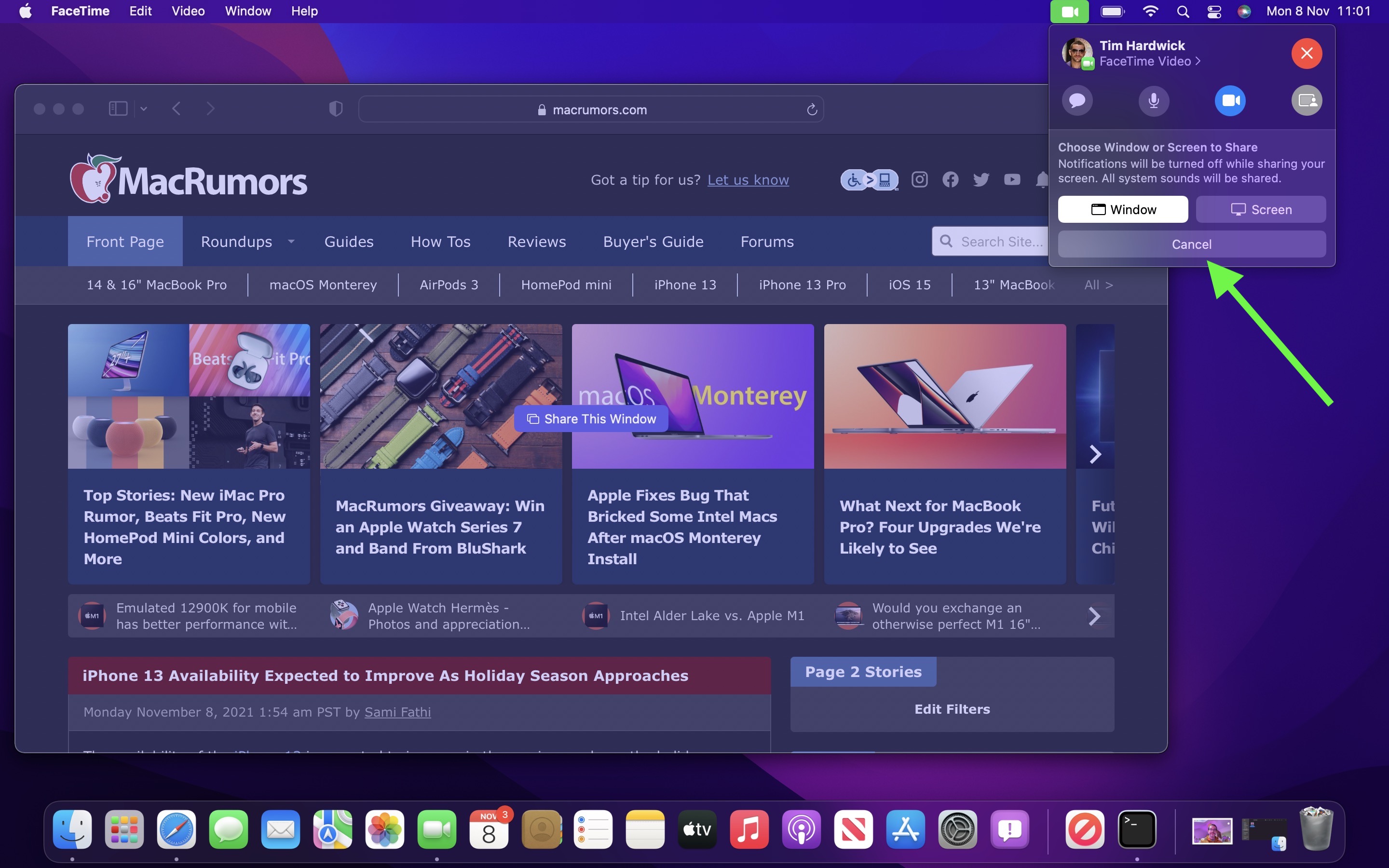
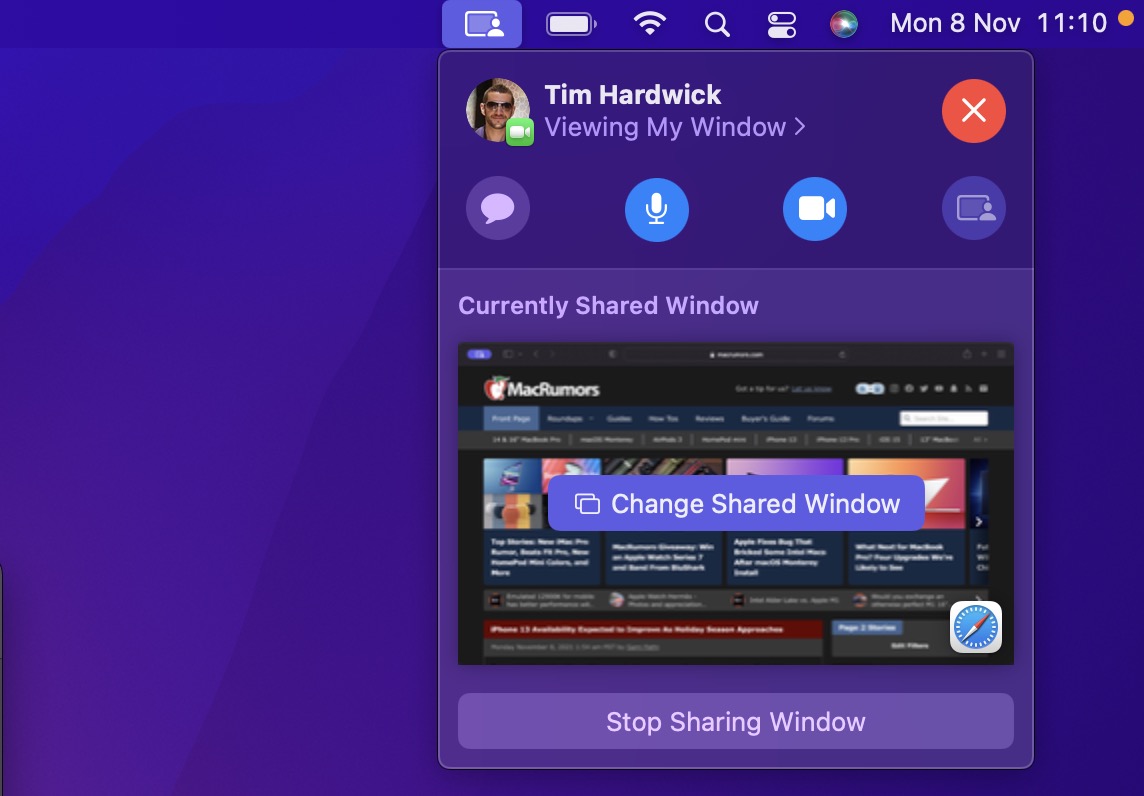
- To stop sharing the window or screen, click Stop Sharing Window/Screen in the FaceTime menu bar item dropdown, where you can also change the window being shared.
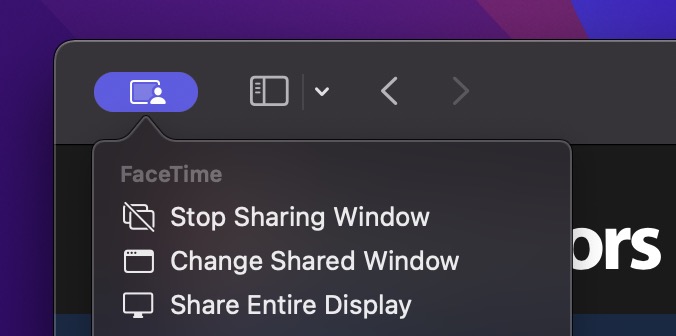
- When sharing a window, you can also click the SharePlay button in the top-right corner of the window to reveal three options: Stop Sharing Window, Change Shared Window, and Share Entire Display.
- The introduction of SharePlay on Mac also means you can listen to music or watch movies and TV together over FaceTime, and everyone on the call will see the same synced playback and controls.
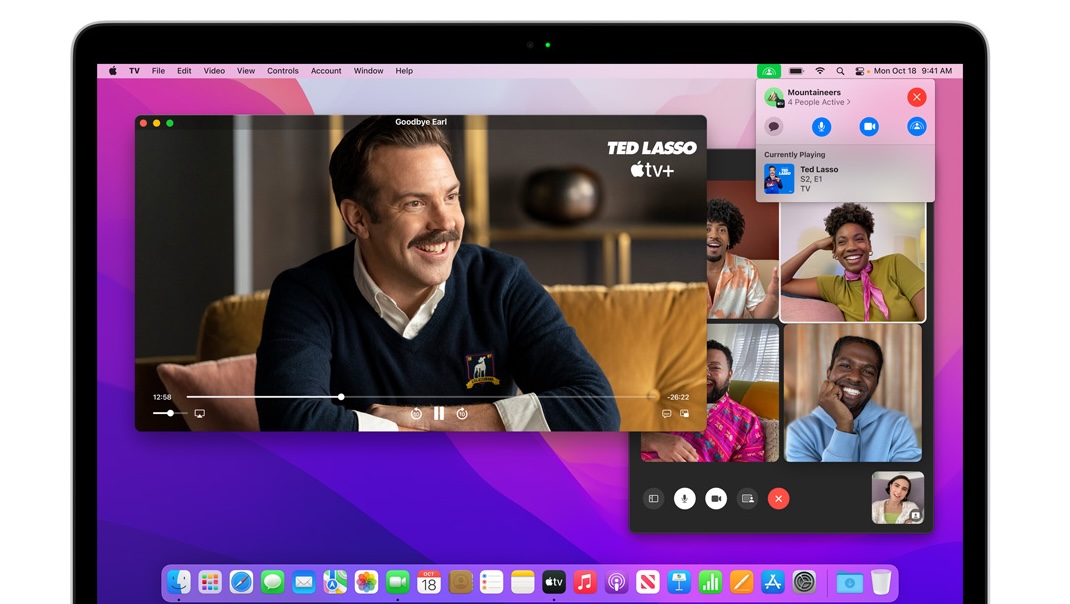
In addition to first-party Apple experiences like Apple TV and Apple Music, SharePlay is also compatible with third-party app experiences. Developers have already been building SharePlay experiences for iOS devices, and now they can build SharePlay features into Mac apps as well. For more on what you can do with FaceTime in iOS 15.1 and iPadOS 15.1, we have a dedicated guide that highlights all of the new features.
Note: The SharePlay feature in FaceTime requires macOS Monterey 12.1, which is only available to beta testers as of writing. Expect Monterey 12.1 to be released to all users in late fall 2021.
Related Roundup: macOS Monterey
Tags: FaceTime, SharePlay
Related Forum: macOS Monterey
This article, "macOS Monterey 12.1 Beta: How to Share Your Screen on a FaceTime Call" first appeared on MacRumors.com
Discuss this article in our forums
Continue reading...