
M
MacRumors
Guest
Author: Tim Hardwick
In iOS 16, currently in beta, Apple has made iterative improvements to its built-in Siri voice assistant, including expanded offline support, the ability to hang up calls using Siri, and new accessibility features.
One of these new accessibility enhancements is an option to have Siri announce notifications and incoming calls through your iPhone's speaker.
Previously in iOS 15, Siri's announce notifications option only works if you are wearing compatible AirPods or Beats headphones, so this is a handy improvement, plus it also now works with hearing aids that are Made for iPhone.
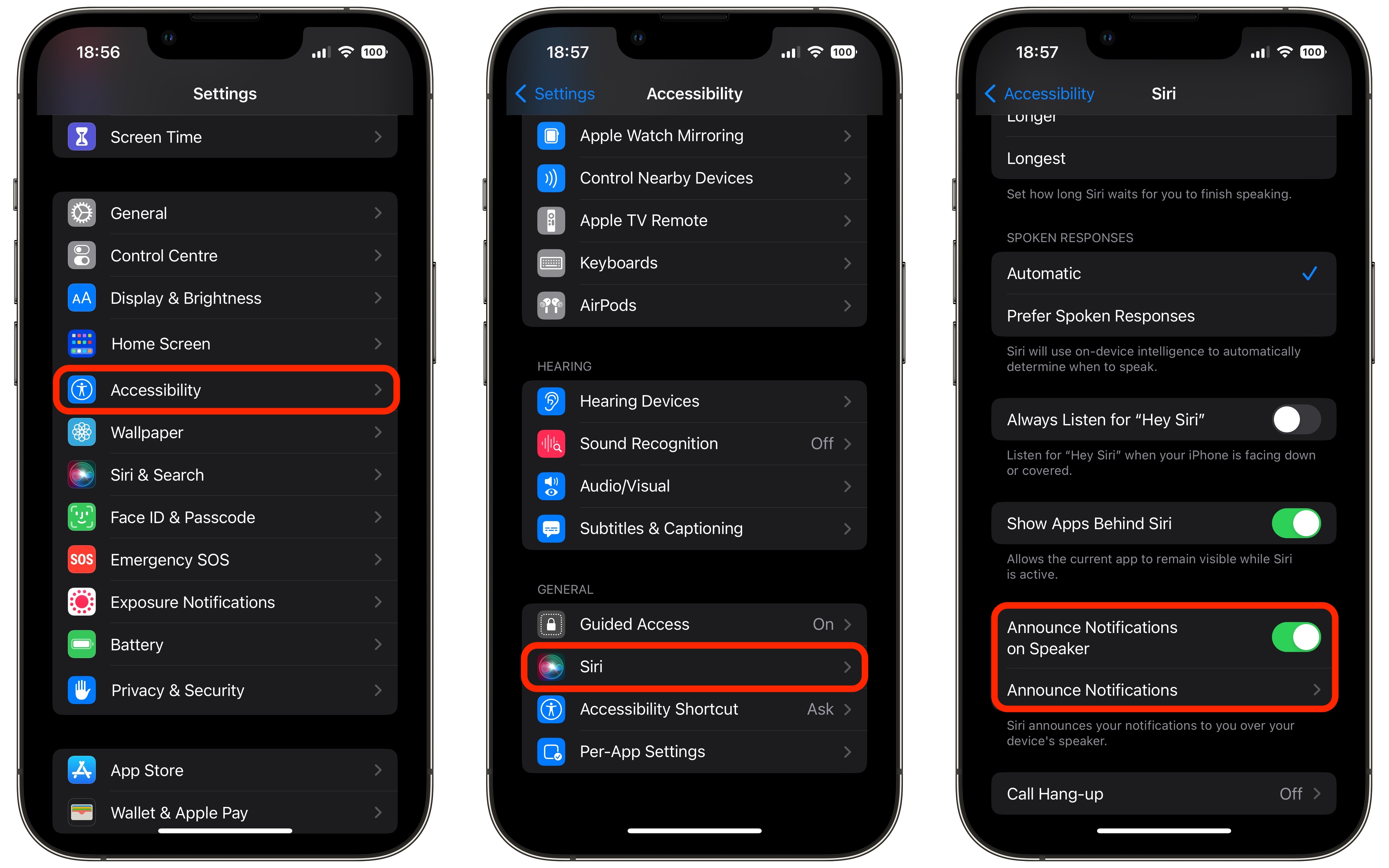
To set you iPhone to announce calls and notifications through the device's built-in speaker, follow the steps below.
Once you've enabled Announce Notifications on Speaker, a new Announce Notifications menu will appear where you can independently select which apps Siri should announce notifications from.
This additional menu also includes options to Announce When Connected to Headphones, as well as an option that allows Siri to send replies to notifications that support them without first reading back the message for you to confirm (Reply Without Confirmation).
Tags: Siri, Accessibility
This article, "iOS 16: How to Make Siri Announce Notifications Through Your iPhone's Speaker" first appeared on MacRumors.com
Continue reading...
In iOS 16, currently in beta, Apple has made iterative improvements to its built-in Siri voice assistant, including expanded offline support, the ability to hang up calls using Siri, and new accessibility features.
One of these new accessibility enhancements is an option to have Siri announce notifications and incoming calls through your iPhone's speaker.
Previously in iOS 15, Siri's announce notifications option only works if you are wearing compatible AirPods or Beats headphones, so this is a handy improvement, plus it also now works with hearing aids that are Made for iPhone.
To set you iPhone to announce calls and notifications through the device's built-in speaker, follow the steps below.
- Open the Settings app on your iPhone.
- Scroll down and select Accessibility.
- Scroll down to the "General" section and select Siri.
- Scroll down to the "Spoken Responses" section and toggle on the switch next to Announce Notifications on Speaker.
Once you've enabled Announce Notifications on Speaker, a new Announce Notifications menu will appear where you can independently select which apps Siri should announce notifications from.
This additional menu also includes options to Announce When Connected to Headphones, as well as an option that allows Siri to send replies to notifications that support them without first reading back the message for you to confirm (Reply Without Confirmation).
Tags: Siri, Accessibility
This article, "iOS 16: How to Make Siri Announce Notifications Through Your iPhone's Speaker" first appeared on MacRumors.com
Continue reading...