
M
MacRumors
Guest
Author: Tim Hardwick
In iOS 14.5 and later, Apple has added a Waze-like feature to its native Maps app that lets you report accidents, hazards, and speed checks along your route when getting directions. Keep reading to learn how it works.
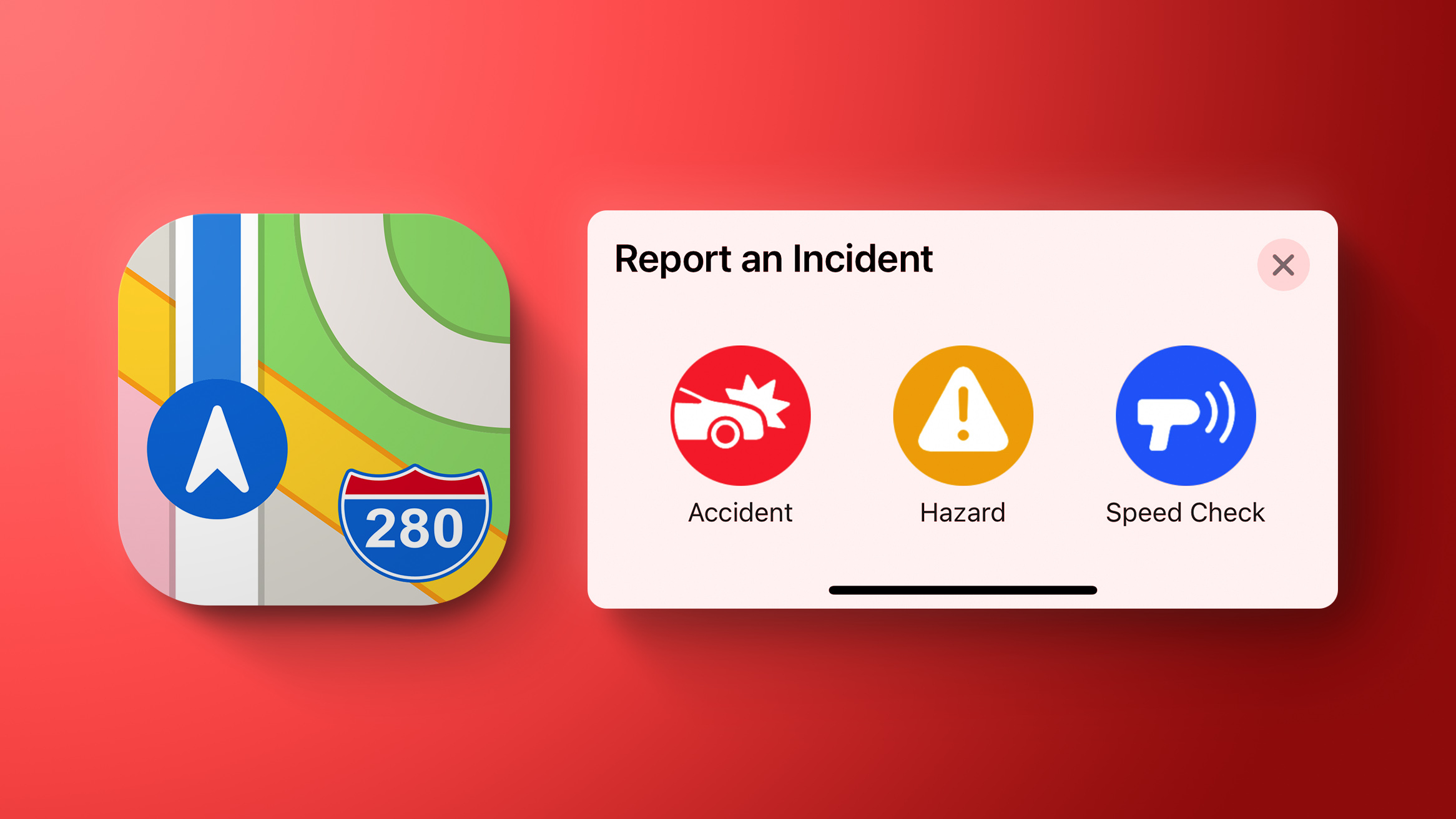
Driving on public roads can throw up all sorts of hazards, but if you're given prior warning then you can be better prepared to deal with them. Apple recognizes this, which is why it allows you to report incidents in Maps for the benefit of other users. If you see something dangerous on your route that you want to warn others about, you can do so by following the steps below.
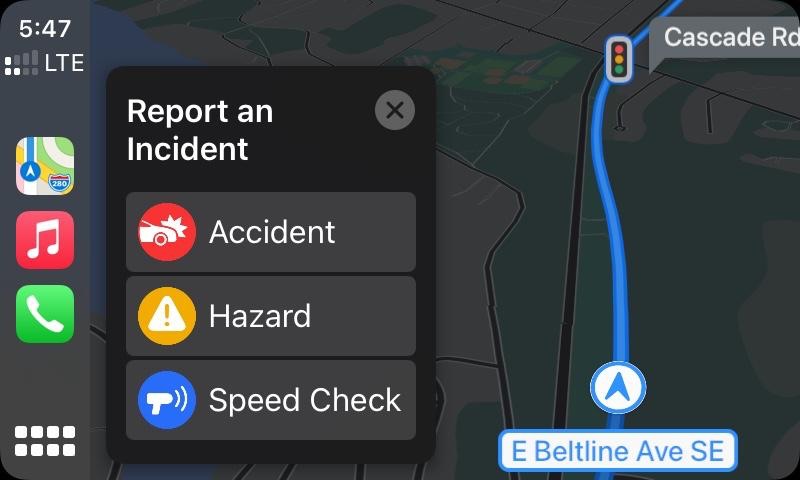
Note that the Report feature described here is also available through CarPlay, which should make it easier to report an incident when you're driving, when ideally you shouldn't be interacting with your phone.
How to Report Speed Checks and Traffic Incidents in Apple Maps

Continue reading...
In iOS 14.5 and later, Apple has added a Waze-like feature to its native Maps app that lets you report accidents, hazards, and speed checks along your route when getting directions. Keep reading to learn how it works.
Driving on public roads can throw up all sorts of hazards, but if you're given prior warning then you can be better prepared to deal with them. Apple recognizes this, which is why it allows you to report incidents in Maps for the benefit of other users. If you see something dangerous on your route that you want to warn others about, you can do so by following the steps below.
Note that the Report feature described here is also available through CarPlay, which should make it easier to report an incident when you're driving, when ideally you shouldn't be interacting with your phone.
How to Report Speed Checks and Traffic Incidents in Apple Maps
- In Apple's Maps app, enter an address in the input field and select a route.
- Choose Go and start your journey.
- If you come across a hazard, accident, or speed check, bring up the options card by tapping the chevron icon in the bottom-left corner of the screen.
- Tap the Report button in the menu card, then tap Accident, Hazard, or Speed Check. Alternately, say "Hey Siri, there's an [accident/hazard/speed check]" and Siri will send in a report to Apple Maps.
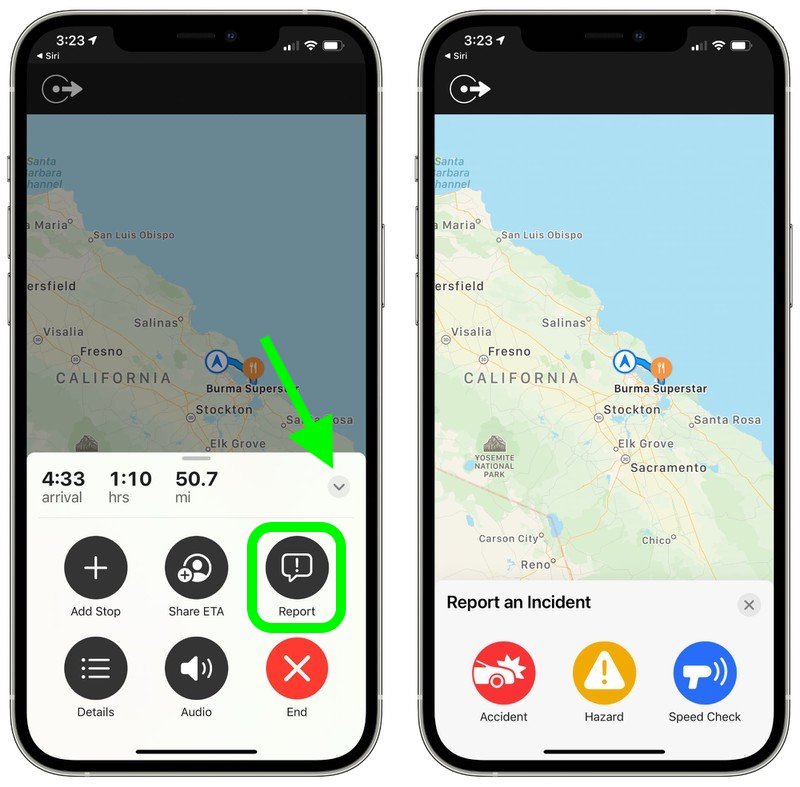
- Reporting an incident flags the location with Apple, so it shouldn't be used except in a valid situation. If enough people file similar reports in the same location, Apple will use anonymized crowdsourcing to flag the incident site on the map.
Related Roundups: iOS 14, iPadOS 14
Tags: Apple Maps, iOS 14.5 Features
This article, "iOS 14.5: How to Report Speed Checks, Traffic Accidents, and Other Hazards in Apple Maps" first appeared on MacRumors.com
Discuss this article in our forums
Continue reading...