
M
MacRumors
Guest
Author: Tim Hardwick
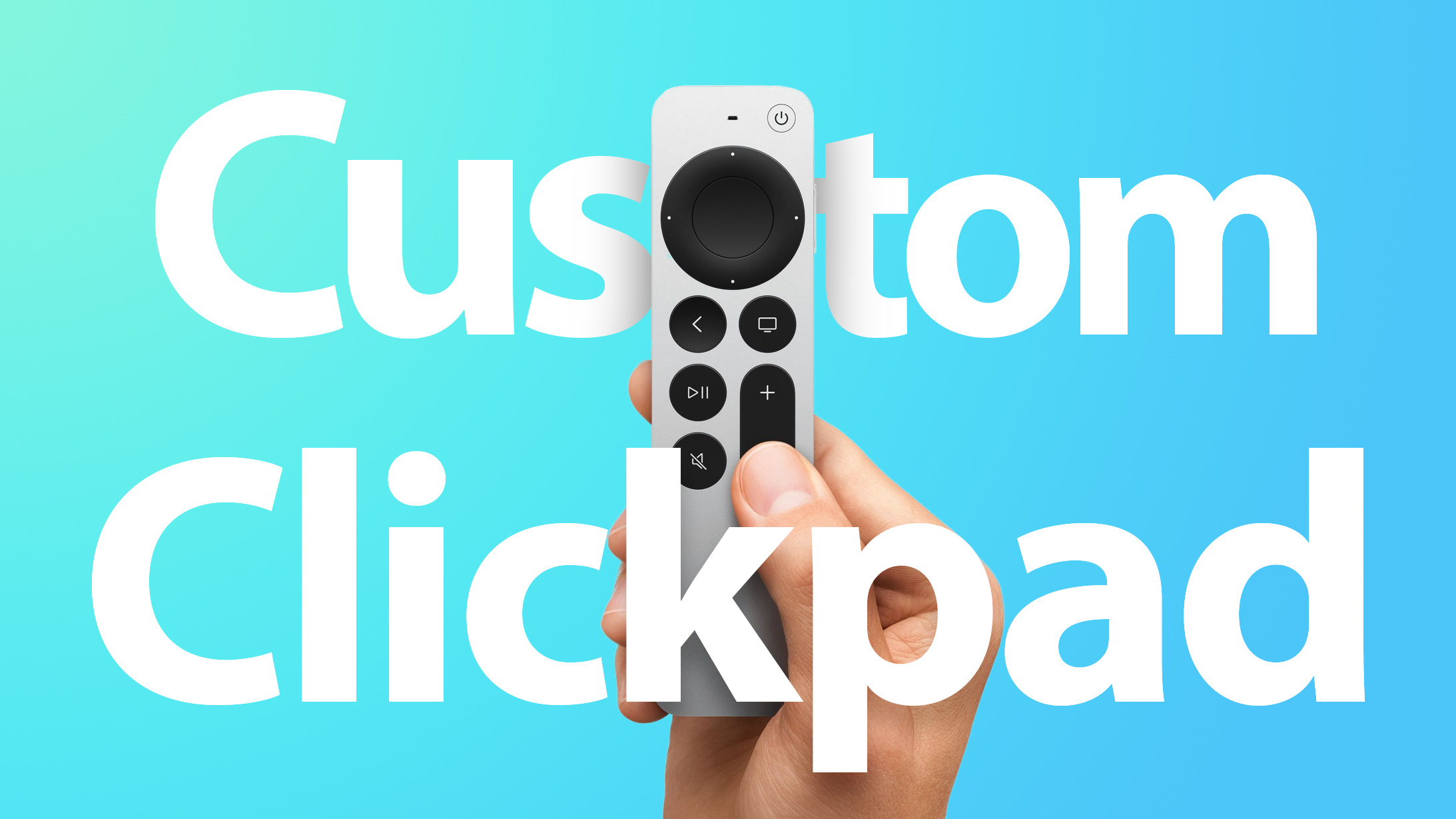
Apple's second-generation redesigned Siri Remote features a touch-sensitive clickpad that can be used to navigate menus as well as fast-forward and rewind video.
When you first start using the Siri Remote, touch surface tracking is on by default, but if you can't get on with the sensitivity or you're just not comfortable using touch controls on a remote, you can always customize it or turn it off.
Change Siri Remote Clickpad Functionality
Change Siri Remote Tracking Sensitivity
If you're having trouble scrubbing through video when playback is paused, check our mini guide to make sure you're using the correct clickpad gesture.
Related Roundups: Apple TV, tvOS 14
Tag: Siri Remote
Buyer's Guide: Apple TV (Buy Now)
Related Forum: Apple TV and Home Theater
This article, "Apple TV: How to Customize the Clickpad on the New Siri Remote (2nd Gen)" first appeared on MacRumors.com
Discuss this article in our forums


Continue reading...
Apple's second-generation redesigned Siri Remote features a touch-sensitive clickpad that can be used to navigate menus as well as fast-forward and rewind video.
When you first start using the Siri Remote, touch surface tracking is on by default, but if you can't get on with the sensitivity or you're just not comfortable using touch controls on a remote, you can always customize it or turn it off.
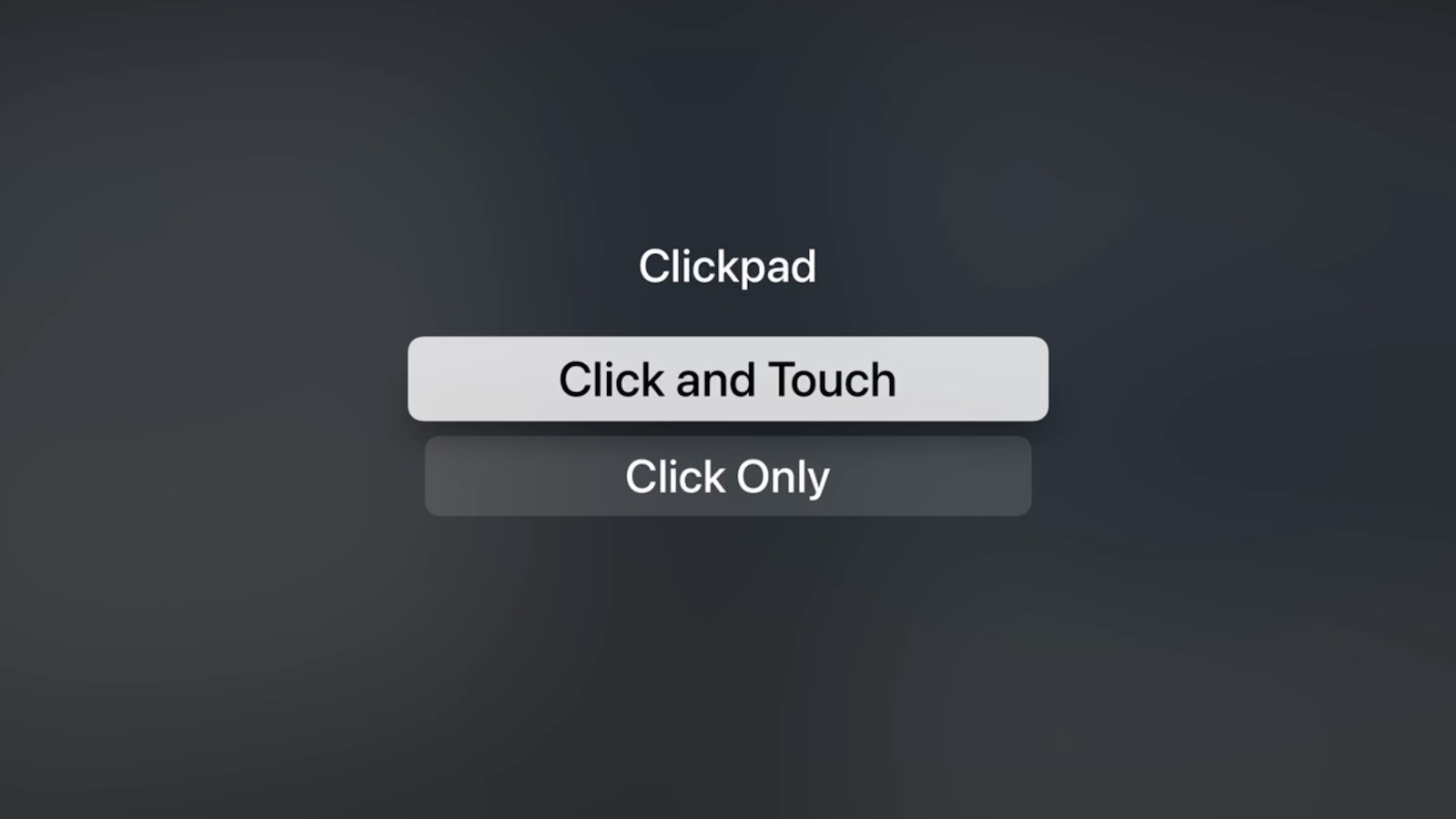
Change Siri Remote Clickpad Functionality
- Launch the Settings app on your Apple TV.
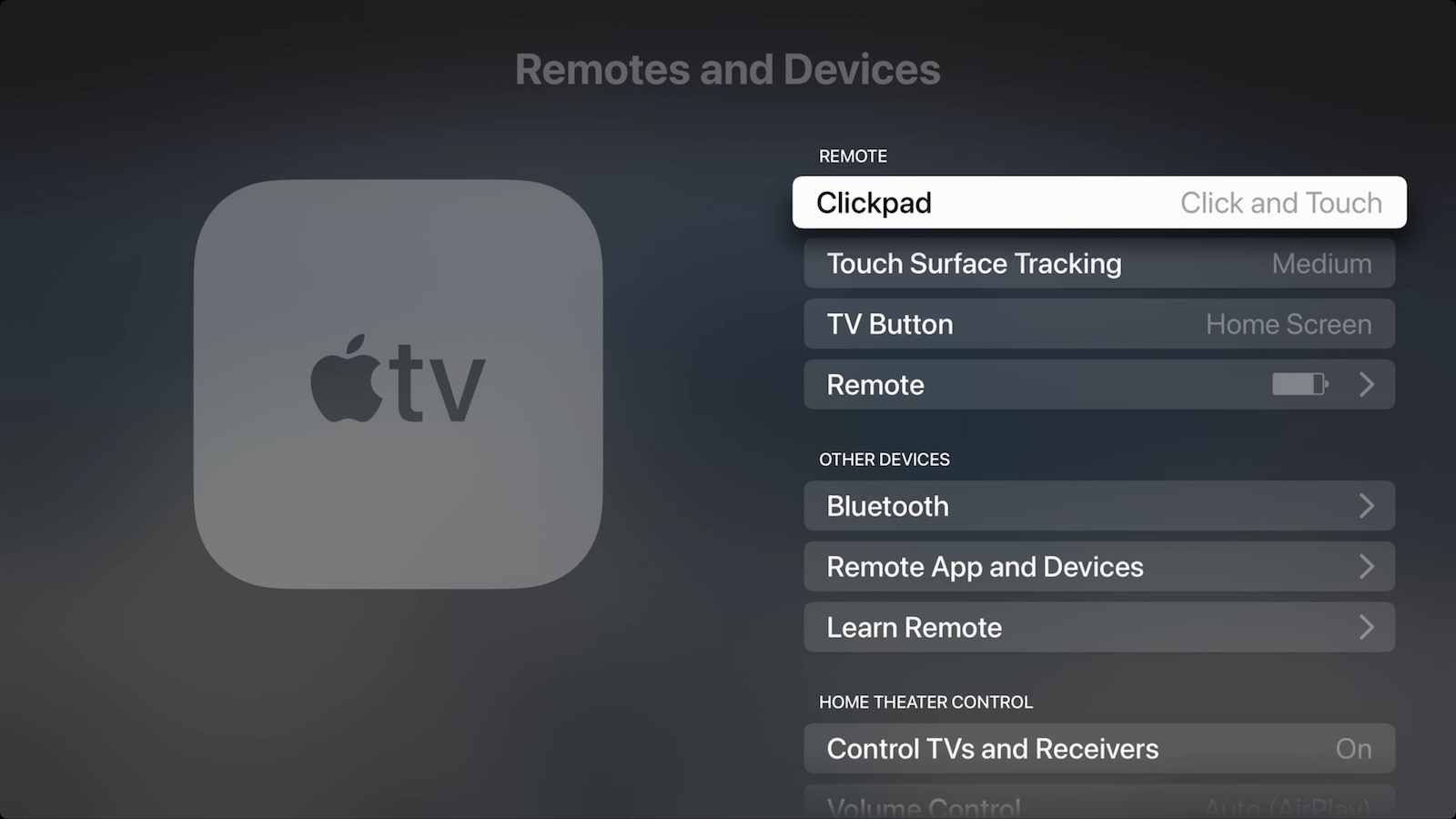
- Select Remotes and Devices.
- Select ClickPad.
- Select Click and Touch to allow both clicking and touch surface tracking, or Click Only to turn off touch surface tracking.
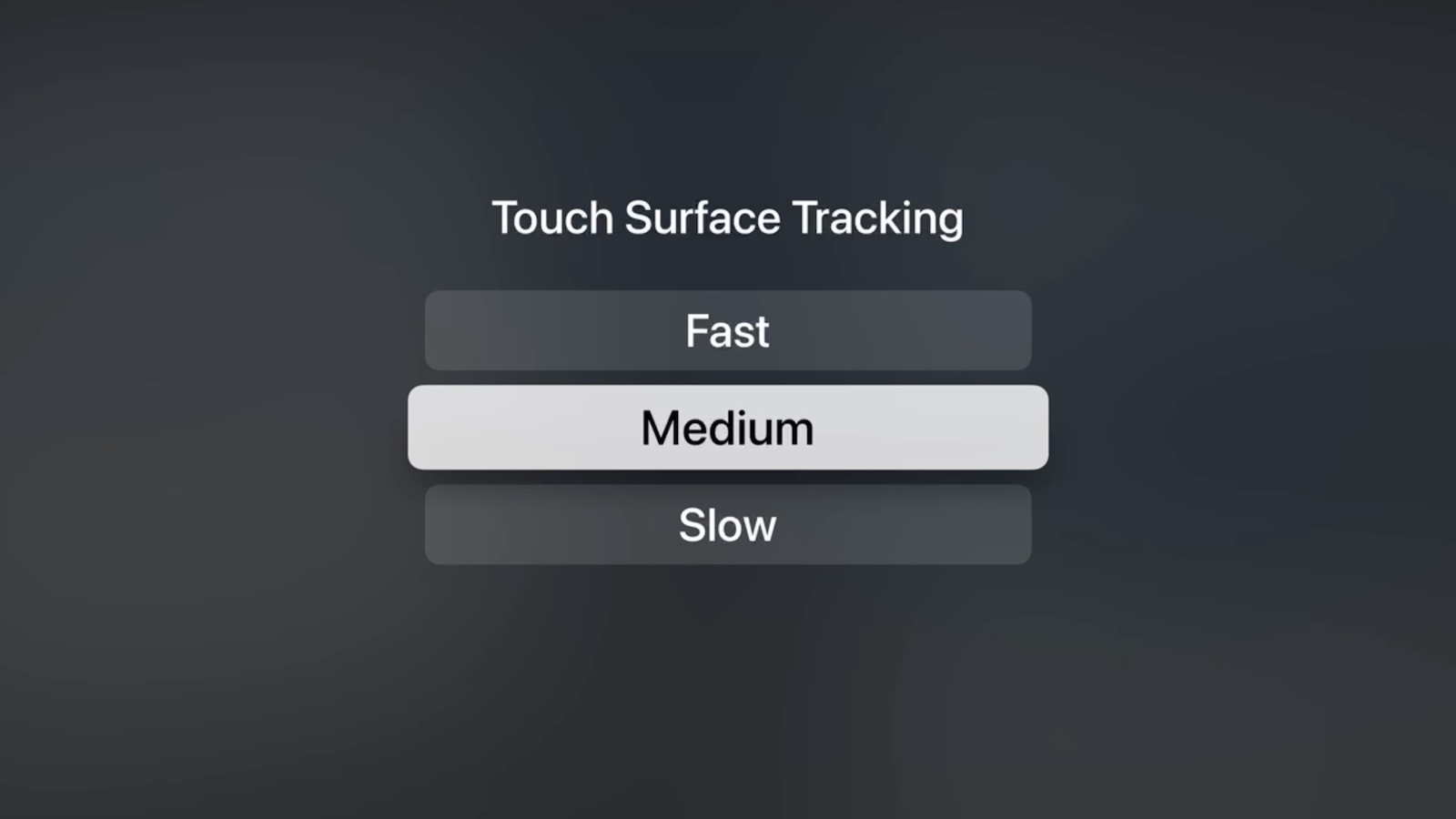
Change Siri Remote Tracking Sensitivity
- Launch the Settings app on your Apple TV.
- Select Remotes and Devices.
- Select Touch Surface Tracking.
- Select Fast to make smaller thumb movements move farther on the Apple TV screen, or Slow to reduce tracking sensitivity.
If you're having trouble scrubbing through video when playback is paused, check our mini guide to make sure you're using the correct clickpad gesture.
Related Roundups: Apple TV, tvOS 14
Tag: Siri Remote
Buyer's Guide: Apple TV (Buy Now)
Related Forum: Apple TV and Home Theater
This article, "Apple TV: How to Customize the Clickpad on the New Siri Remote (2nd Gen)" first appeared on MacRumors.com
Discuss this article in our forums
Continue reading...